1. Start and Sign In to the Laptop
Ensures the laptop is ready before connecting the camera.
- Power on laptop.
- Sign in with user account.
- Close unnecessary apps to avoid camera conflicts.
2. Connect the Tongveo Camera and Bluetooth Speaker
Allows the laptop to recognise the camera and microphone system.
- Plug the camera into a USB port.
- Connect the microphone/speaker via USB or Bluetooth (if battery is charged).
- Wait a few seconds for Windows to detect the devices.
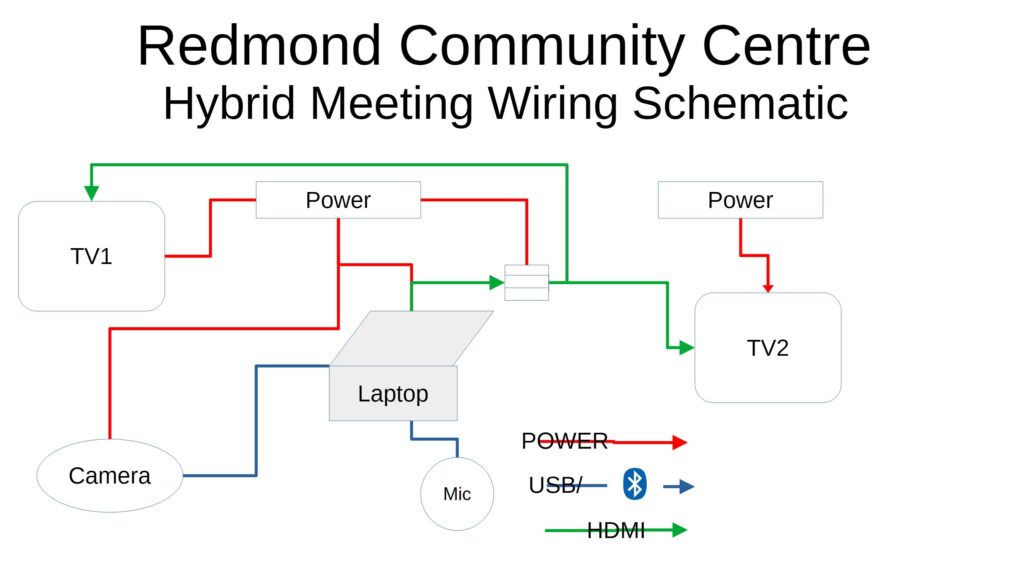
3. Start the Zoom meeting on your own computer.
4. Join the Zoom Meeting on the RCC laptop
Zoom will automatically detect the Tongveo camera and microphone.
- Log on to the computer.Username: RCC@ldtgroup.org.uk
Password: 20wdC026 - Open Zoom → Settings → Video / Audio to change if needed.
- Type in the Zoom meeting ID.The RCC Laptop does not have your email address.
- Confirm the preview shows the video feed.
Optional (if camera adjustments are needed) — Open the Tongveo Camera Software
Use this only if you need to adjust zoom, tracking, or camera angles.
- Launch the Tongveo camera control software.
- Adjust PTZ (Pan-Tilt-Zoom), autotracking, or framing.
- Save any changes before closing then startup Zoom app.
5. Highly Recommended — Test Your Setup Before the Meeting
Ensures everything works before joining a real call.
- Go to https://zoom.us/test.
- Check video quality, tracking, and zoom.
- Test microphone and speaker audio.
- Adjust if needed.
Setup_Guide_Tongveo_AI_Camera.md
Displaying Setup_Guide_Tongveo_AI_Camera.md.