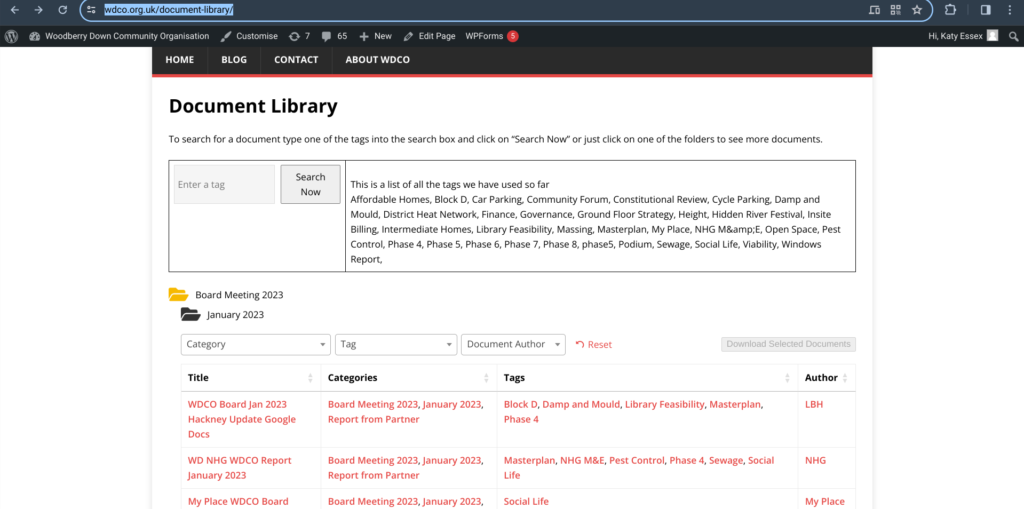
- Login to the WordPress site using the link: https://wdco.org.uk/wp-login.php
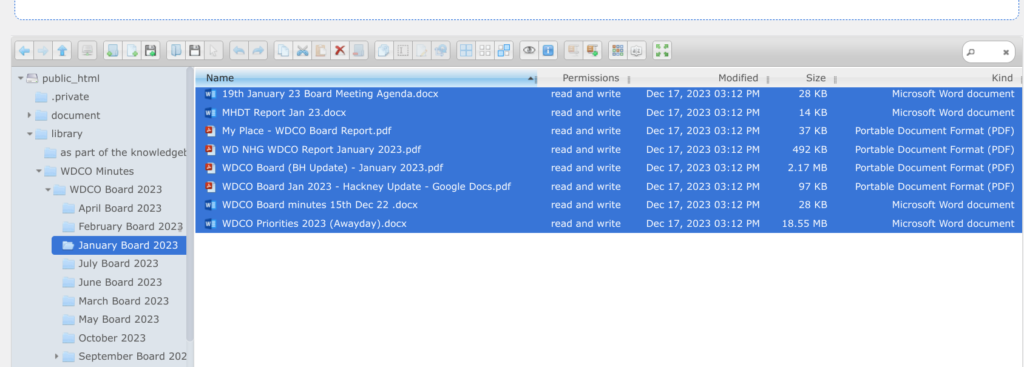
- Find all of the documents related to 2023 meetings under: File Manager > Library > WDCO Minutes > WDCO Board 2023. They are then divided into folders by month.
- Any missing documents not yet uploaded to WordPress can be found in the shared Dropbox. It can be accessed using the link https://www.dropbox.com/home/WDCO%20Board%202023?di=left_nav_browse under Folders > WDCO Board 2023 (Categorised by Month). Users will need to be added by an existing user.
- In WordPress go to File Manager > Library > WDCO Minutes > WDCO Board 2023 and find the correct month. Select all of the documents and click the disc icon to download all documents.

6. Open any Word documents in a word processor and Save As a PDF so that all documents are now in a PDF format.
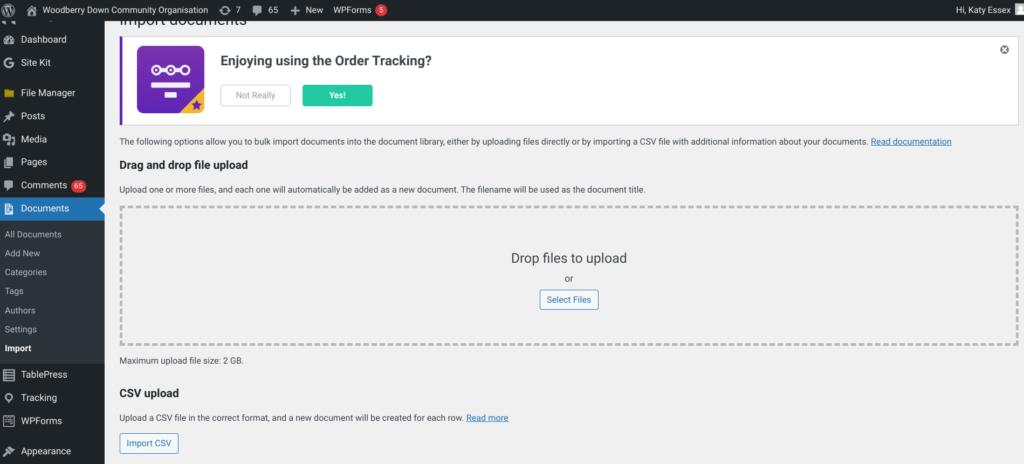
7. In WordPress go to Documents > Import. Click on Select Files and then upload all of the PDFs you now have saved. Do not upload any of the Word documents.
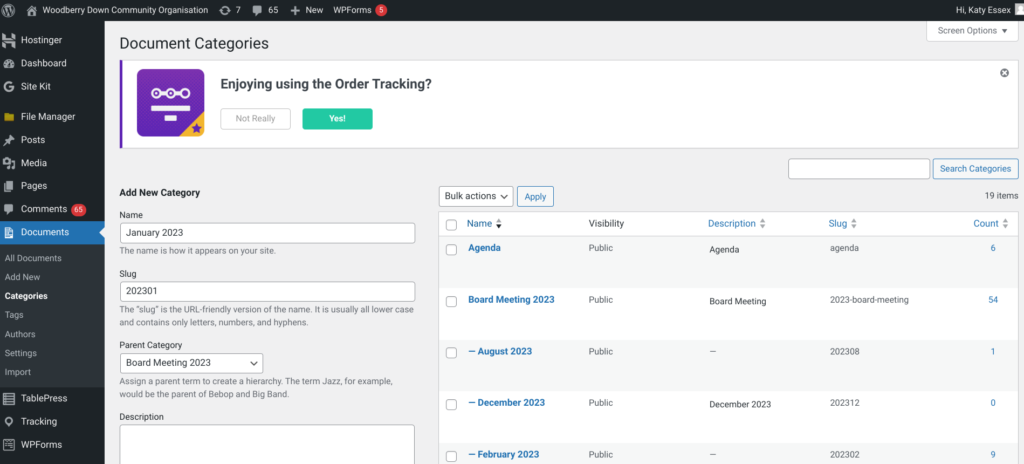
8. Go back to Documents and all your uploads should now be listed. If you are adding a new month you will need to create a new category for that month. Go to Documents > Categories and add a new category. Add a folder name (e.g. January 2023), and a slug which should be the year and month written in the format yyyymm (e.g. 202301). And then chose a parent category which for this year is Board Meeting 2023.
9. Go back to Documents where you need to add a Category, Author and Tags to each of the newly uploaded documents. To do this you will need to open each document saved on your computer to find out who has written the document, what kind of document it is and what topics are discussed.
10. Adding a Category
The options for Category are: Agenda, Minutes of Previous Meeting, Presentation, Report from Partner, Written Responses, Other. Each document should be assigned to one of these categories as well as the category Board Meeting 2023 and the correct month within that (e.g. January 2023).
To add a category click on ‘Quick Edit‘ under the document title. This will bring up a box like this:
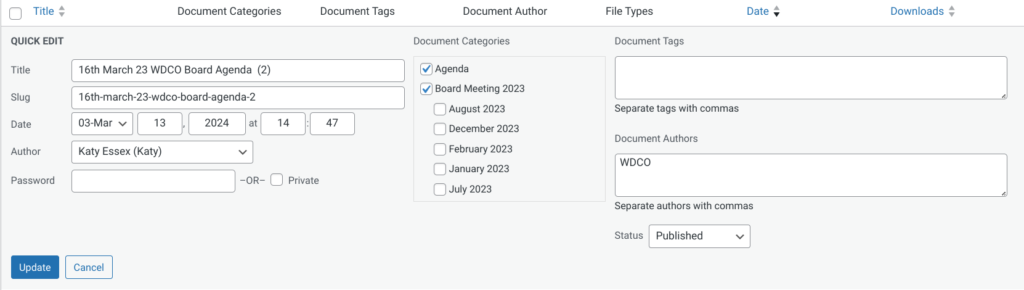
Scroll down the middle box and select the appropriate categories.
11. Adding an author.
The options for author are NHG (Notting Hill Genesis), BH (Berkeley Homes), MHDT (Manor House Development Trust), WDCO (Woodberry Down Community Organisation), LBH (London Borough of Hackney).
To add an author click on Quick Edit under the document title and start typing the name under Document Authors. The name will appear for you to select.
12. Adding document tags.
The options for document tags are: Affordable Homes, Block D, Car Parking, Community Forum, Constitutional Review, Cycle Parking, Damp and Mould, District Heat Network, Finance, Governance, Ground Floor Strategy, Height, Hidden River Festival, Insite Billing, Intermediate Homes, Library Feasibility, Massing, Masterplan, My Place, NHG M&E, Open Space, Pest Control, Phase 4, Phase 5, Phase 6, Phase 7, Phase 8, phase5, Podium, Sewage, Social Life, Viability, Windows Report.
You can find these by reading the document or opening it and searching for each tag using Ctrl F.
To add a tag click on Quick Edit under the document title and start typing the tag name under Document Tags. The tag name will appear for you to select.
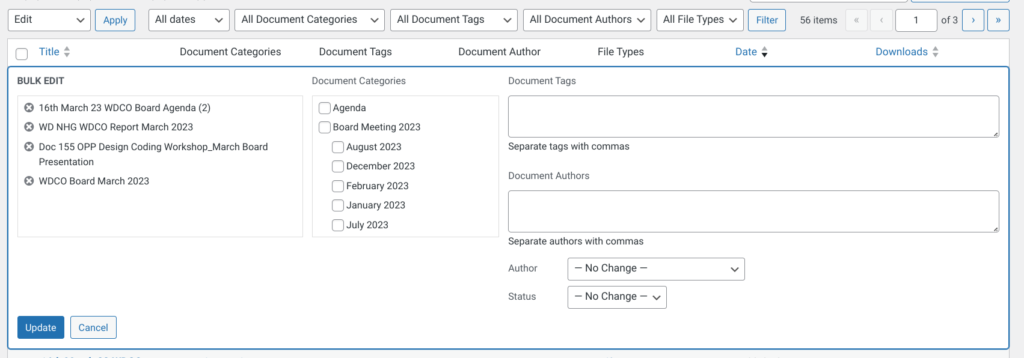
13. To add the same tag, author or category to multiple documents tick the boxes to the left of the appropriate documents. Under ‘Bulk Actions‘ in the top left select Edit and then click Apply. You can then add tags, categories, authors that will be applied to all selected documents.
14. The documents you have uploaded should now be visible in the WDCO Document Library here: https://wdco.org.uk/document-library/